


CloudEye 365
3.4118.00 Reviews
App Specs
- Version
- 4.11.0.11
- Updated On
- License
- Free
- Downloads
- 100,000+
- Developer
- jeemak
- Categories
- Libraries & Demo
- Platform
- Android, iOS
Screenshots
 Analysis by AppCompare
I’d treat CloudEye 365 as a companion for a camera setup, not as a complete security system on its own. That distinction matters: an app can make viewing and managing a supported setup easier, but it can’t replace choosing suitable cameras, placing them well, or deciding what you want to monitor. If your main goal is to check a home or small space from your phone, the idea is appealing. If you expect a security service that handles everything for you, I’d look elsewhere.
What to decide before relying on it
Before making this part of a household routine, I’d first work out which cameras and features I actually need. A live view is useful for a quick check, while recording and later playback matter more when I need to understand what happened while I was away. Those are different needs, and they can bring different storage demands. I wouldn’t assume that installing the app alone guarantees every camera will work with it; checking compatibility before buying or setting up hardware is the sensible first step.
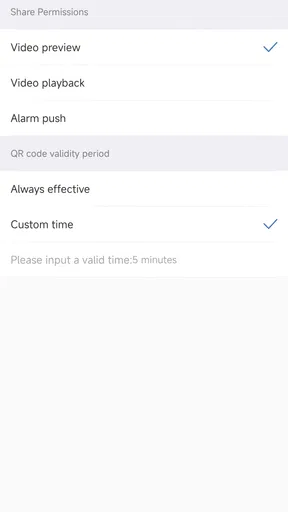
I’d also think about who needs access. A camera that is useful to one person may be less useful if other household members cannot easily check it when needed. For a shared home, agree on camera placement, who can view footage, and how alerts should be handled before turning monitoring into a daily habit. That is not a special feature of the app; it is the practical part of using any home camera system responsibly.
A useful routine, not a substitute for judgement
One realistic use is a quick check after leaving home: open the live view to see whether a delivery is still at the door, then close it rather than keeping a feed running in the background. Another is reviewing a recording after noticing something out of place. In both cases, the value comes from having a clear reason to check, not from watching every camera constantly. I’d keep alerts focused on the areas and times that matter, because a phone that buzzes for every harmless movement quickly trains its owner to ignore it.
For anyone monitoring a front entrance, I’d take time to observe what the camera sees at different times of day. Changing light, passing traffic, moving plants, and regular household activity can all affect how useful a motion alert feels. If notifications become noisy, adjusting sensitivity is a practical first response, but I would test the result for a few days rather than lowering it until alerts stop altogether. Fewer alerts are not automatically better if they also hide the event you actually care about.
Where it sits among camera apps
In the broad libraries and demo area, this is a more focused tool than a general media library or a camera demonstration app: its appeal is tied to monitoring rather than browsing or creating content. Compared with a manufacturer’s own camera app, the important question is not which one sounds more capable, but which one works reliably with the cameras you own. A dedicated alternative may offer a more familiar setup or a better fit for a particular device ecosystem, while CloudEye 365 may suit someone whose hardware is already designed to use it.
It is also different from a paid, professionally monitored alarm service. A phone app can help you inspect a live image or receive a notification, but that does not mean someone else is watching the property or responding on your behalf. I would not rely on it as the only answer for a high-risk location. For a straightforward personal camera setup, it may be enough; for a business that needs managed response, audit procedures, or tightly controlled access, a more specialized system is the better match.
Worth Reading Before You Choose

EA SPORTS FC Mobile 26 Is a Bigger Football Game, but It Takes Time

Flipboard Shows What News Apps Must Do Beyond the Feed

Switching to Android Auto Means Rethinking Your Driving Routine

Google Calendar Makes a Crowded Week Easier to Manage

Ludo King Makes the Most of the Minutes Between Plans

Baby Panda World Brings Quick Play to Modern Phones, but Its Game Library Feels Busy
Who is likely to get the most from it
I can see the fit for someone who already has compatible cameras and wants a phone-based way to check a home, a small workspace, or a shared property. It may also suit a first-time user who values a guided setup over a control panel packed with unfamiliar options. The developer is listed as jeemak, and the app is free, so it is easy to try without paying for the download itself. That does not make the whole camera setup cost-free, though: hardware and any optional storage arrangements are separate considerations.
I’d skip it if I needed guaranteed compatibility with a particular camera but had not checked that point, or if I wanted a polished, professional monitoring service rather than a self-managed tool. It may also be a poor fit for anyone who dislikes receiving alerts or would rather avoid keeping cameras connected to a phone workflow. The right choice depends less on the app’s name than on whether its camera support, notification behavior, and storage approach match the way you actually plan to use it.
Getting Started with CloudEye 365
First things first, installing CloudEye 365 was a breeze. Available on both Android and iOS, the download and setup process was super smooth. Once installed, I was greeted with a clean, user-friendly interface that even my tech-challenged friends could navigate without a hitch.
The app offers a quick tutorial right off the bat, which is quite handy. It walks you through the basic features, ensuring you’re not left fumbling around trying to figure things out. It’s always nice when an app respects your time and doesn’t throw you into the deep end.
Features that Stand Out
Now, let’s dive into what makes CloudEye 365 tick. The app boasts a slew of features designed to provide comprehensive security solutions. Here’s what caught my attention:
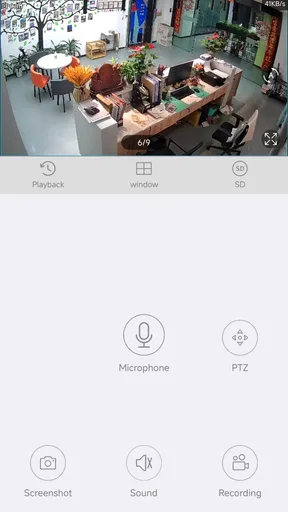
- Real-time Monitoring: This is where CloudEye 365 truly shines. You can set up cameras and monitor live feeds directly from your phone. The video quality is crisp and clear, making it easy to spot any unusual activity.
- Motion Detection: Not just any motion detection, but smart detection. The app minimizes false alarms by distinguishing between, say, a tree swaying in the wind and an actual intruder.
- Cloud Storage: It offers generous cloud storage options, allowing you to save recordings without worrying about running out of space. Plus, accessing past footage is a cinch.
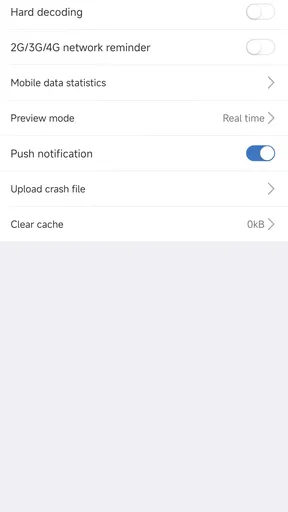
- Alerts and Notifications: Instant alerts pop up on your phone the moment the app detects something fishy. You can customize these notifications to suit your needs, ensuring you’re never caught off guard.
Using CloudEye 365 in Daily Life
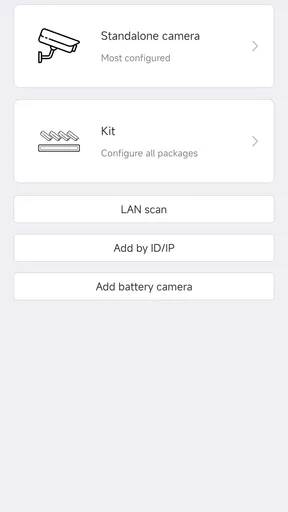
I decided to put the app through a real-world test by setting it up around my home. The installation of cameras was straightforward, thanks to the app’s step-by-step guide. Within minutes, I had a full view of my living room, front porch, and backyard.
What’s impressive is the app’s ability to integrate with other smart home devices. I was able to sync it with my smart lights, creating a seamless security network. Whenever motion was detected, lights would turn on automatically, adding an extra layer of deterrence.
The cloud storage feature proved invaluable when I needed to review footage from a week ago. The retrieval process was smooth, and the playback quality was excellent. It’s comforting to know that your data is secure and easily accessible whenever you need it.
A Few Things to Consider
While CloudEye 365 is an impressive app, it’s not without its quirks. For instance, the app can occasionally send false alerts, especially during stormy weather when the wind is particularly strong. However, tweaking the sensitivity settings can mitigate this issue.
Another point worth mentioning is the subscription cost for additional cloud storage. While the basic plan is adequate for most users, those with extensive security needs might find themselves upgrading sooner than later. It’s something to keep in mind if you’re budget-conscious.
How the version history changes the picture
The current Android release is version 4.8.4.1, and the app first appeared on March 13, 2023. That gives a useful point of reference, but a version number alone cannot tell me which functions changed or whether a particular problem has been fixed. I would separate what I can judge about the current experience from what I might hope future releases improve: the former is about whether the app fits a real camera routine today; the latter should remain an expectation until an actual update demonstrates it.
For someone already using an earlier release, I’d approach an update practically. Check that the cameras still appear as expected, test a live feed, and confirm that the notification choices you rely on remain set the way you want. If you use recordings to look back on an event, make sure you can still locate and play a clip before depending on the system for something important. That small check is more useful than assuming every version change is either a major upgrade or a problem.
Small habits that make monitoring more useful
A good setup is not necessarily the one with the most cameras or the loudest alerts. I’d start with one location that has a clear purpose, such as a main entrance, and learn what normal movement looks like there. Once I understand which alerts are useful and which are distractions, I can decide whether another camera adds meaningful coverage. This gradual approach makes it easier to spot a weak angle or an overly sensitive setting without turning the whole home into a constant stream of notifications.
For footage review, I’d go in with a time window and a question rather than scrolling through recordings at random. If I am checking whether a parcel arrived, I need the relevant period around the delivery, not hours of unrelated activity. Keeping that habit also makes cloud storage limits easier to manage, particularly if I have more than one camera or keep recordings for longer than I regularly review them. Before choosing a paid storage option, I’d estimate how often I truly revisit footage and whether longer retention solves a real problem for me.
There is a privacy trade-off worth considering too. A camera can capture neighbors, visitors, or shared spaces as well as the area I intend to watch. I’d aim the view narrowly, tell people who regularly enter the space that monitoring is in use, and avoid treating the footage as a casual way to keep tabs on others. A security tool feels more trustworthy when its use is clear and proportionate.
What the rating and platform details tell me
The app has an average rating of 3.4 from around 395 ratings, alongside over 100 written reviews and more than 100,000 installs. I read that combination as a reason to approach it with sensible expectations rather than as a verdict on every setup. Camera compatibility and home network conditions can shape the experience, so a review from someone using different hardware may not predict what I will see. The most useful test is whether my own cameras connect consistently and whether the app’s alerts and playback work for my routine.
It is free and marked for Everyone, and it supports Android 6.0 or later. That makes it accessible to many Android users, but an older supported operating system does not guarantee that every device will feel equally responsive. If the phone is also used for urgent calls or work notifications, I’d be especially careful about setting alert behavior so security notices are noticeable without overwhelming everything else.
What I would watch for next
For a camera companion, the details that matter most over time are dependable connection, clear playback, useful alert controls, and a storage arrangement that stays understandable. I’d watch whether routine tasks remain simple as the app evolves, especially adding or checking a camera and retrieving a particular recording. Those are more meaningful signs of progress to me than a version number by itself.
I’d also pay attention to how well the app fits the rest of my setup. If I need to open several separate apps to see cameras, lights, and recordings, a broader smart-home platform may eventually be more convenient. If CloudEye 365 covers the cameras I actually use and keeps the essential checks straightforward, switching just for a longer feature list may not improve my day. The right call is the one that reduces friction without creating a false sense of protection.
Wrapping It Up
So, is CloudEye 365 worth it? In my opinion, absolutely. It’s a robust, reliable, and user-friendly app that does a stellar job of keeping your property secure. The peace of mind it offers is priceless, especially in today’s world where security concerns are ever-present.
Whether you’re a tech enthusiast or a total novice, this app caters to everyone. With its intuitive interface and powerful features, CloudEye 365 makes home security accessible to all. So go ahead, give it a whirl, and rest easy knowing that your home is under the watchful eye of CloudEye 365.
Pros
- Seamless cloud integration across devices.
- User-friendly interface with intuitive navigation.
- Offers real-time data syncing capabilities.
- Comprehensive security features included.
- Efficient storage management tools available.
Cons
- Limited free storage space on basic plan.
- Occasional sync delays in high traffic.
- Advanced features locked behind paywall.
- Requires constant internet connection.
- Lacks offline access for some functions.
FAQs for CloudEye 365
What is CloudEye 365 and how does it work?
CloudEye 365 is a cloud-based security app designed to provide comprehensive surveillance solutions for both personal and business use. It uses advanced AI technology to monitor and analyze real-time video feeds. Users can access live streams, receive alerts for unusual activities, and store video footage securely in the cloud.
Is CloudEye 365 compatible with all devices?
CloudEye 365 is available for both Android and iOS platforms, ensuring broad compatibility with most smartphones and tablets. It also offers a web-based interface, allowing users to access features from any internet-connected device, such as laptops or desktop computers.
What are the key features of CloudEye 365?
Key features of CloudEye 365 include real-time video streaming, motion detection alerts, secure cloud storage, and advanced AI analytics. The app also supports multi-user access, allowing multiple users to monitor and manage feeds simultaneously. Additionally, it offers integration with smart home systems for seamless operation.
How secure is the data stored on CloudEye 365?
Data security is a top priority for CloudEye 365. The app uses end-to-end encryption to protect video streams and stored footage. Users are also provided with customizable privacy settings, ensuring that they have full control over who can access their video feeds and stored data.
Are there any subscription fees associated with CloudEye 365?
CloudEye 365 offers a free tier with basic features, but to access advanced functionalities such as extended cloud storage and AI analytics, users need to subscribe to a premium plan. Subscription fees vary based on the selected plan and can be billed monthly or annually.


